Last updated: April 24, 2026
When you receive an invitation to an organization in Eskuad, first you will get an email that looks like this.
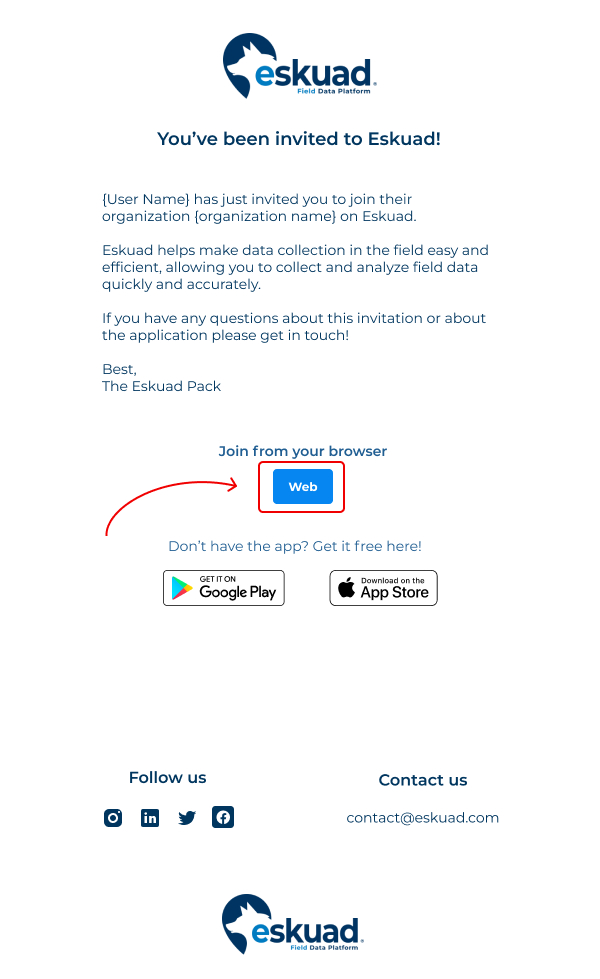
After clicking the link:
-
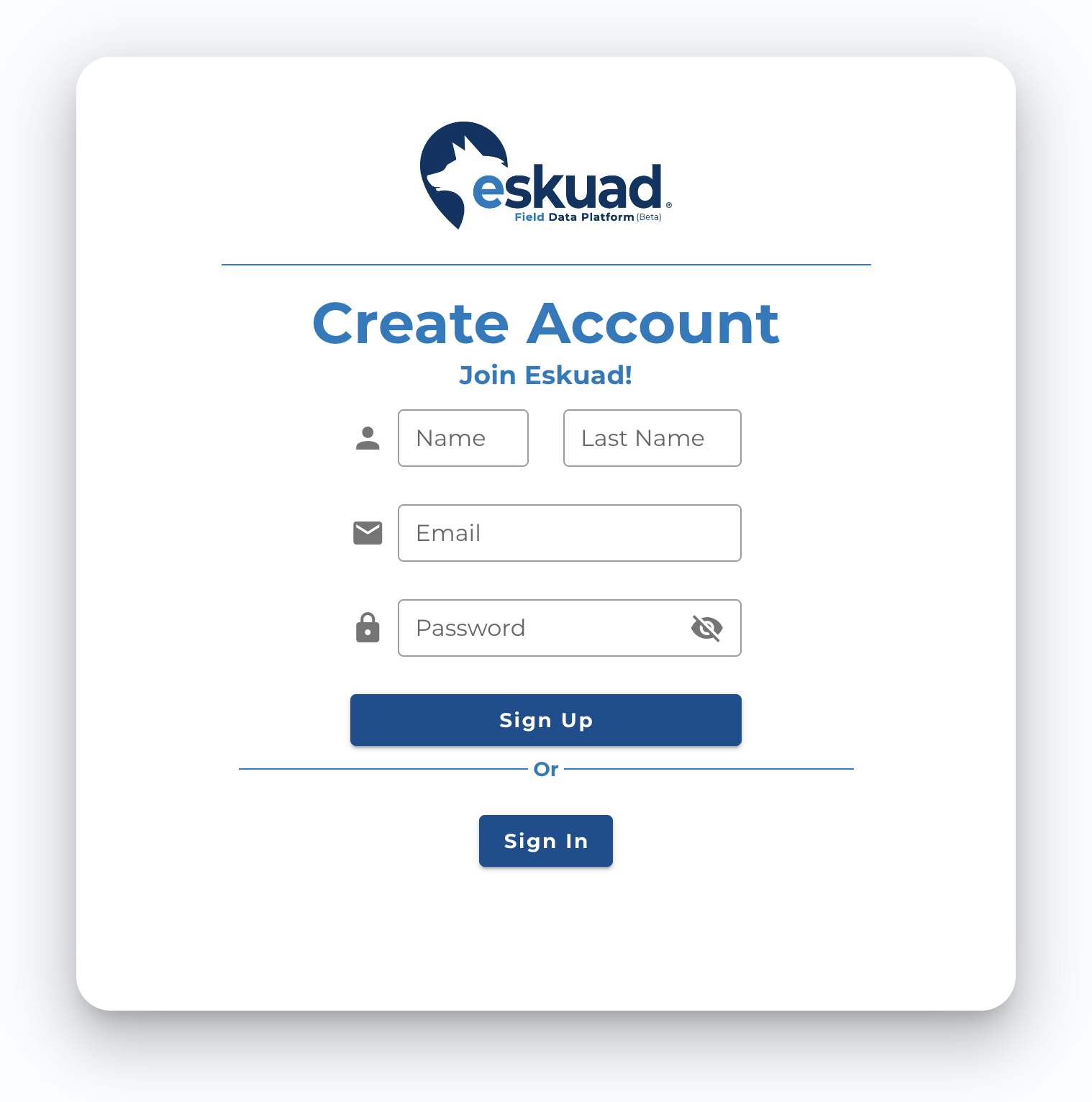
First you will need to create a password with the following criteria: 8 characters, 1 number, 1 letter, and 1 capital letter.
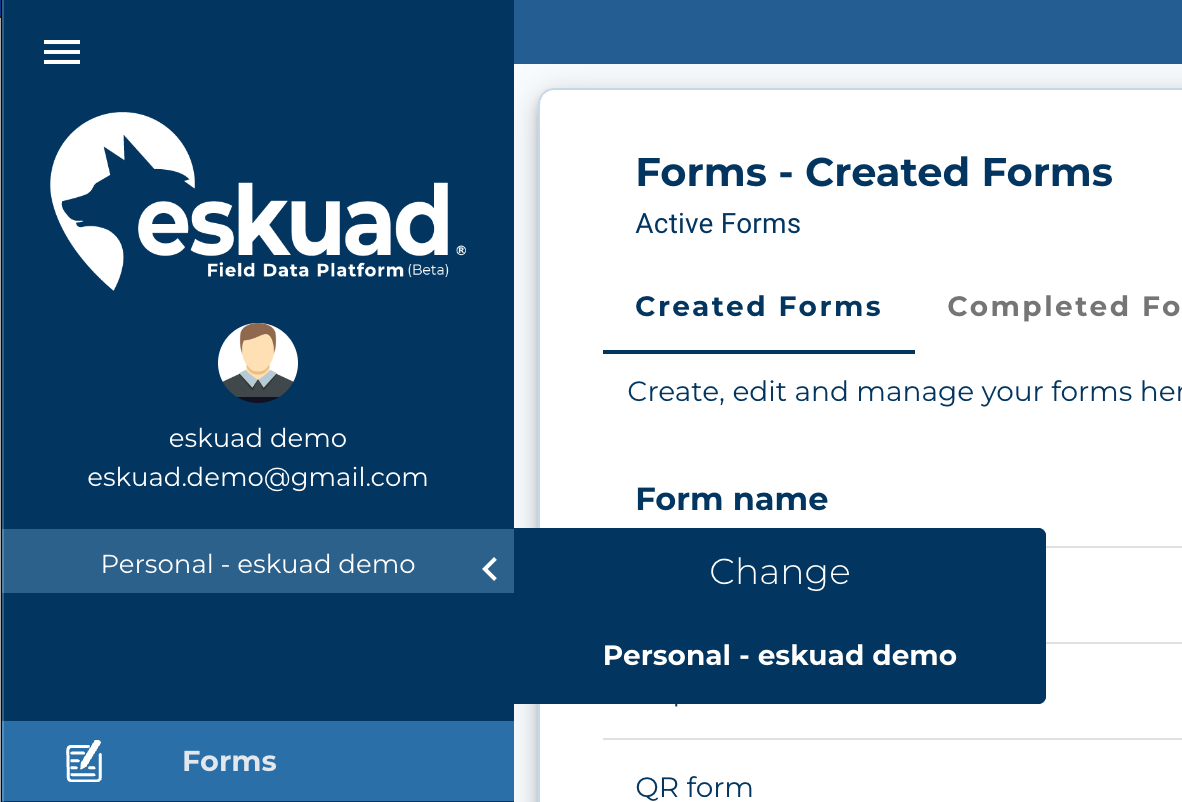
When you are logged in, you may be asked about your roll in the organization. If so, you may need to change organizations to be sure you are in the correct place. If this is the case you can change organizations under your account name in the web app as pictured below. Just click on the arrow, and choose the organization you have been invited to join.
Getting the Mobile app
For Android users,
the app can be found on the google play store
Or scan this QR code with your device’s camera

For Apple users
the app can be found on the app store
Or scan this QR code with your device’s camera

Open the application and enter the email and password for the login you just created

Changing organizations on the mobile app
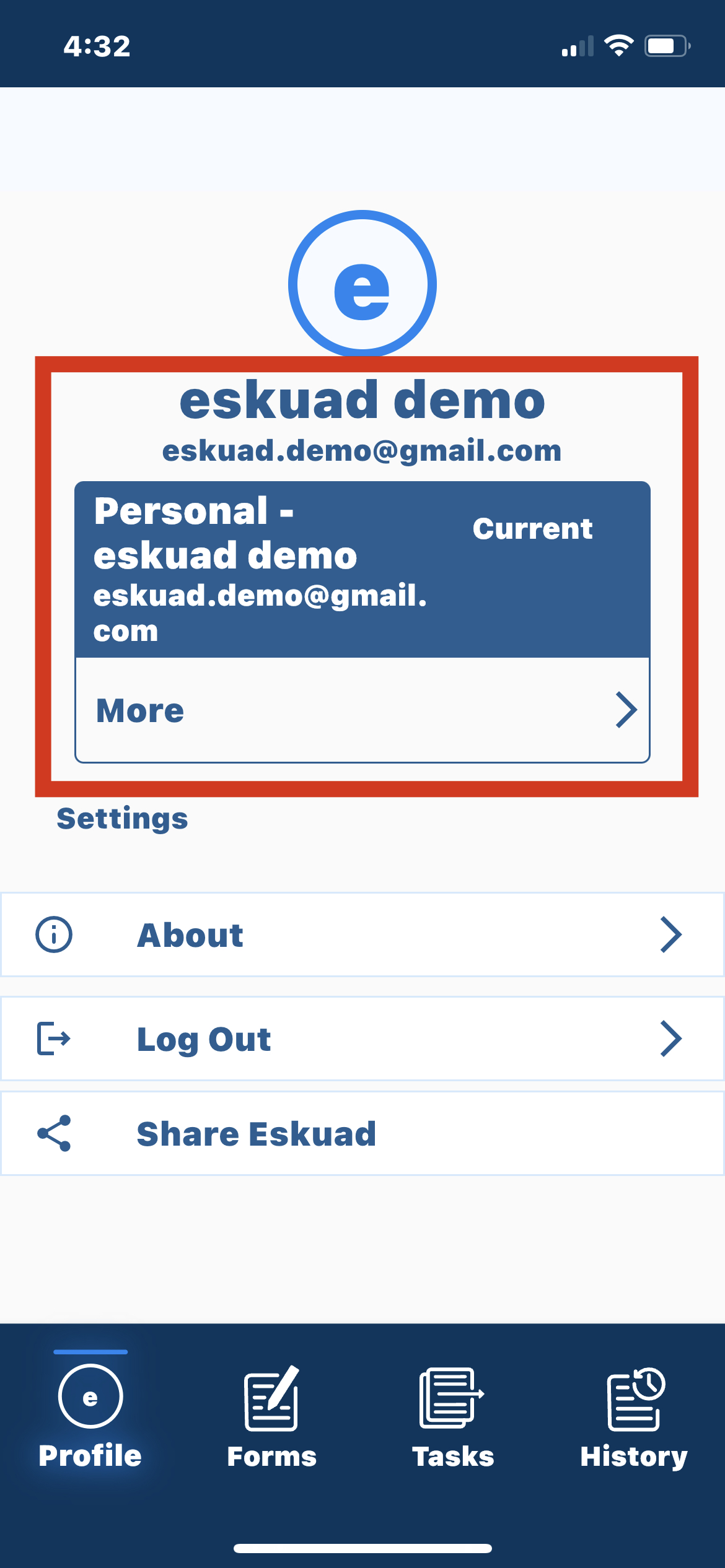
To change organizations on the mobile app tap the profile icon at the bottom of the screen, then the more button pictured below.